There are multiple ways to interact with the current page. We have tried to add the most common ways so you don't need to use Selenium directly, and if yoiu think something is missing, please create an issue.
Auto-wait for elements
By default, Browsertime waits up to 6 seconds for elements to appear before interacting with them. This means you usually don’t need explicit commands.wait.* calls before clicking or typing — the commands will automatically poll until the element exists in the DOM.
You can configure the timeout with --timeouts.elementWait:
# Wait up to 10 seconds for elements
browsertime --timeouts.elementWait 10000 myScript.mjs

# Disable auto-wait (fail immediately if element not found)
browsertime --timeouts.elementWait 0 myScript.mjs
Finding elements
You can use commands.find(selector, options) to find an element and get a Selenium WebElement back. It uses the configured --timeouts.elementWait as the default timeout:
// Find an element (auto-waits using the configured timeout)
const element = await commands.find(‘#my-element’);

// Find with a custom timeout
const element = await commands.find(‘#my-element’, { timeout: 5000 });

// Wait for the element to be visible, not just present in the DOM
const element = await commands.find(‘#my-element’, { timeout: 5000, visible: true });
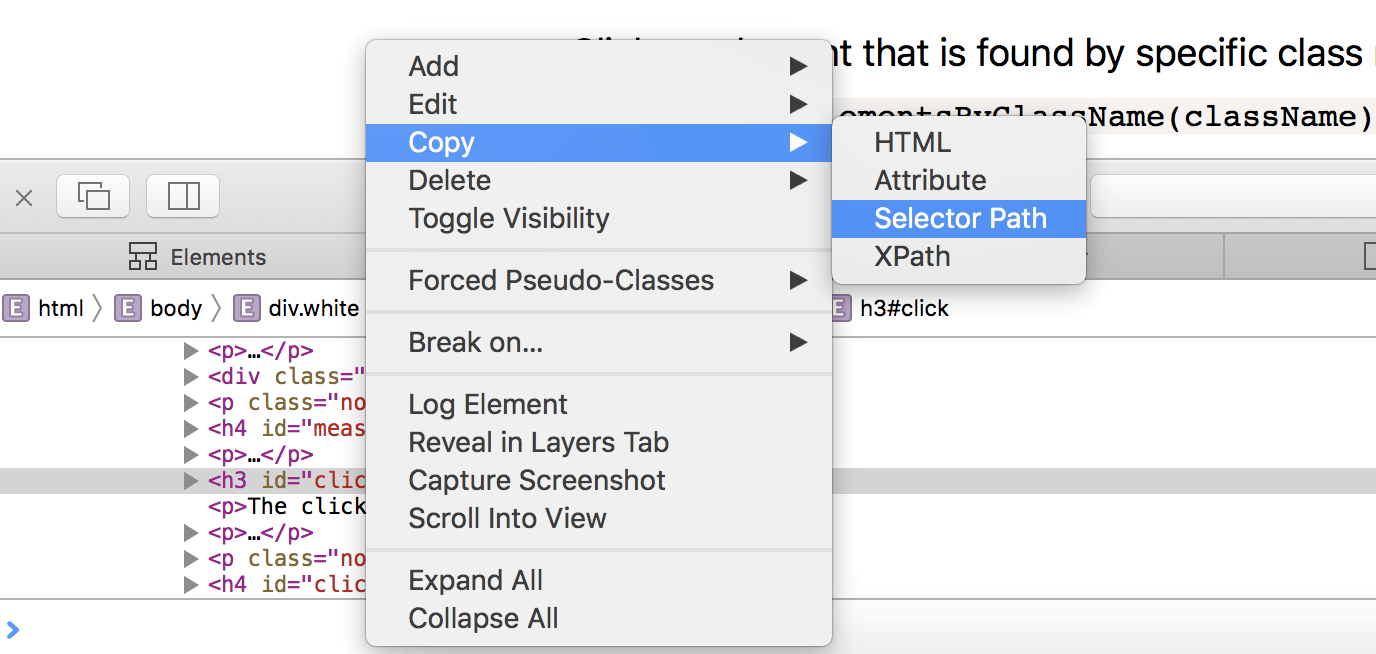
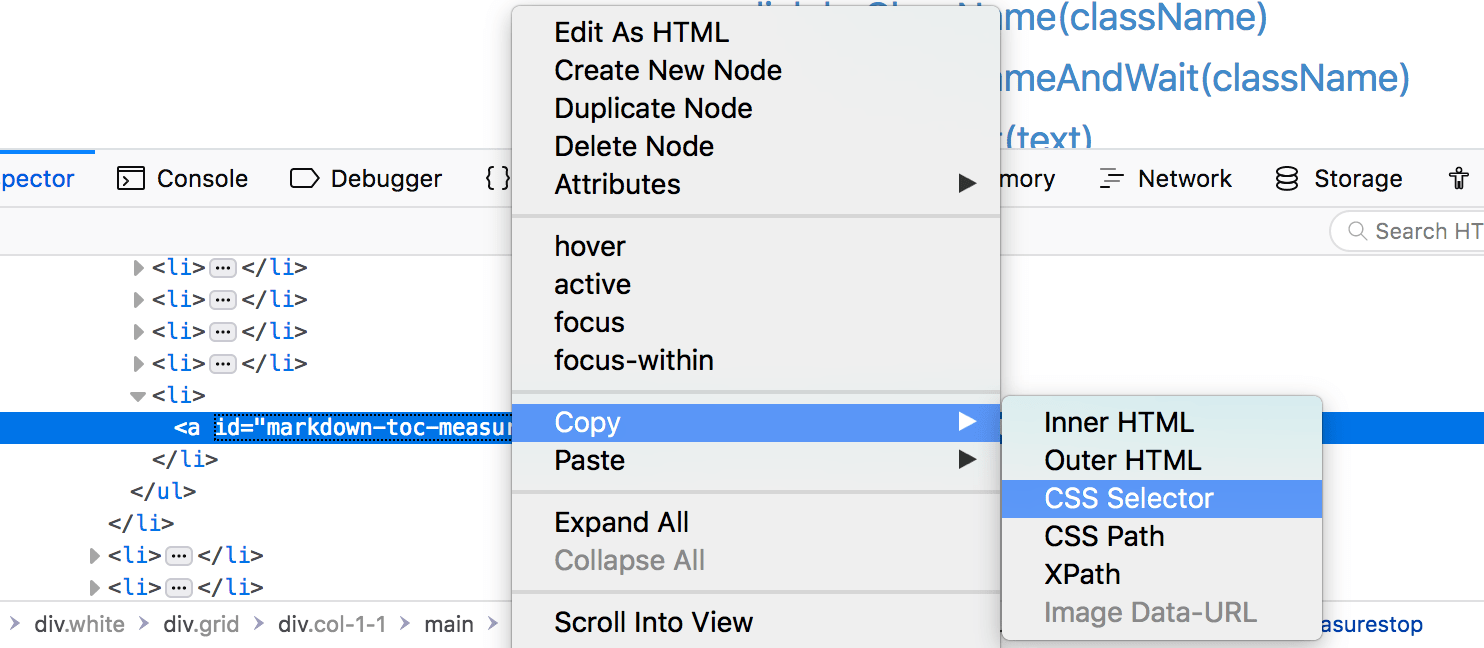
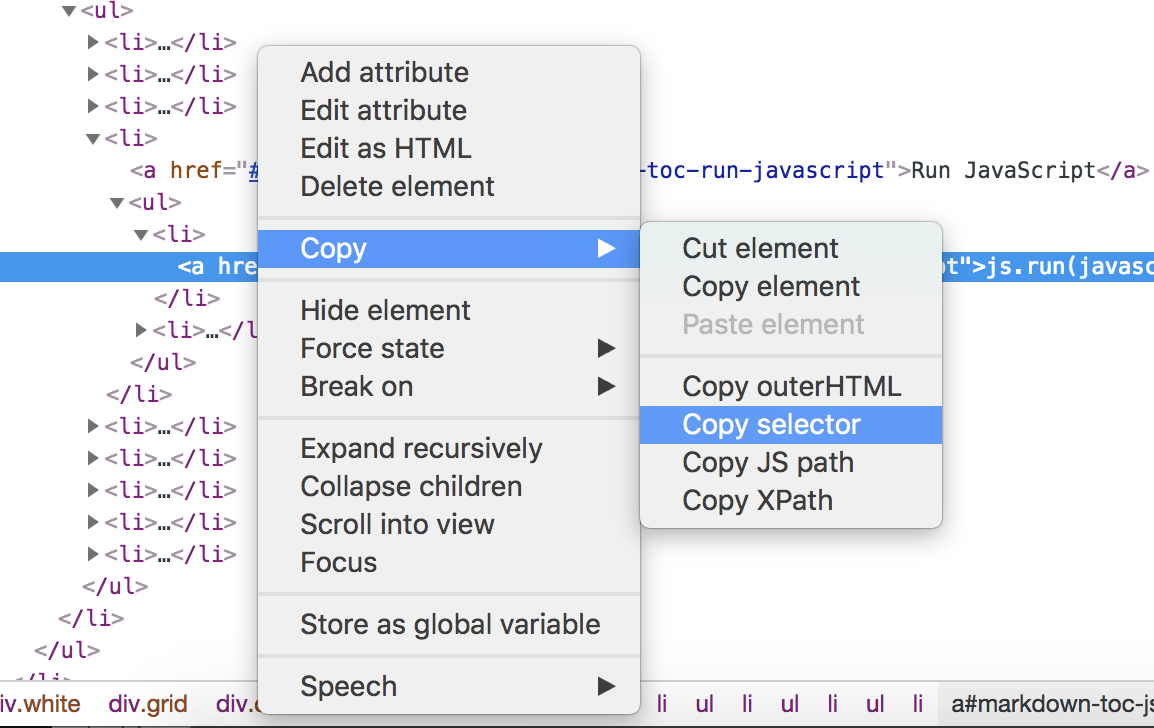
One of the key things in your script is to be able to find the right element to invoke. If the element has an id it’s easy. If not you can use developer tools in your favourite browser. The all work mostly the same: Open DevTools in the page you want to inspect, click on the element and right click on DevTools for that element. Then you will see something like this:
Using Safari to find the CSS Selector to the element
Using Firefox to find the CSS Selector to the element
Using Chrome to find the CSS Selector to the element
Using Actions
Since Browsertime 21.0.0 we support easier access to the Selenium Action API. That makes easier to interact with the page and you can also chain commands. You can checkout the Selenium NodeJS Action API to see more what you can do.
Here's an example doing search on Wikipedia:
/**
 * @param {import('browsertime').BrowsertimeContext} context
 * @param {import('browsertime').BrowsertimeCommands} commands
 */
export default async function (context, commands) {
  await commands.measure.start('https://www.wikipedia.org');
  const searchBox = await commands.element.getById('searchInput');
  const submitButton = await commands.element.getByClassName(
    'pure-button pure-button-primary-progressive'
  );

  await commands.measure.start('Search');
  await commands.action
    .getActions()
    .move({ origin: searchBox })
    .pause(1000)
    .press()
    .sendKeys('Hepp')
    .pause(200)
    .click(submitButton)
    .perform();

  // If you would do more actions after calling .perform()
  // you manually need to clear the action API
  //await commands.action.clear();

  await commands.wait.byPageToComplete();
  return commands.measure.stop();
}
JavaScript
You can run your own JavaScript in the browser from your script. This is powerful because that makes it possible to do whatever you want :)
Run
Run JavaScript. Will throw an error if the JavaScript fails.
If you want to get values from the page, this is your best friend. Make sure to return the value and you can use it in your script.
/**
 * @param {import('browsertime').BrowsertimeContext} context
 * @param {import('browsertime').BrowsertimeCommands} commands
 */
export default async function (context, commands) {
  // We are in browsertime context so you can skip that from your options object
  const secretValue = await commands.js.run('return 12');
  // if secretValue === 12 ...
}
By default this will return a Selenium WebElement.
Run and wait on page
Run JavaScript and wait for page complete check. Do that with commands.js.runAndWait("").
Click
The click command finds an element and clicks it using real OS-level mouse events via the Selenium Actions API. The element must be visible and interactable.
Unified selector syntax (recommended)
The simplest way to click is using commands.click(selector) with a unified selector string. CSS selectors are the default, and you can use prefixes for other strategies:
/**
 * @param {import('browsertime').BrowsertimeContext} context
 * @param {import('browsertime').BrowsertimeCommands} commands
 */
export default async function (context, commands) {
  await commands.navigate('https://www.sitespeed.io/');

  // CSS selector (default)
  await commands.click('#login-btn');

  // By text content (any element, not just links)
  await commands.click('text:Documentation');

  // By link text (only <a> tags)
  await commands.click('link:Documentation');

  // By ID
  await commands.click('id:login-btn');

  // By XPath
  await commands.click('xpath://button[contains(text(), "Submit")]');

  // By name attribute
  await commands.click('name:email');

  // By class name
  await commands.click('class:btn-primary');

  // Wait for page complete check after clicking (replaces AndWait methods)
  await commands.click('link:Documentation', { waitForNavigation: true });
}
Supported prefixes: id:, xpath:, text:, link:, name:, class:. No prefix means CSS selector.
Legacy click methods
The older commands.click.bySelector(), commands.click.byId() etc. methods still work. The AndWait variants (like byLinkTextAndWait) are deprecated — use commands.click(selector, { waitForNavigation: true }) instead.
If it does not find the element, it will throw an error with the current page URL included for easier debugging.
All click commands
You can find all the click commands here.
Wait
You can wait for elements using the unified selector syntax:
// Wait for an element to appear (default 6 seconds)
await commands.wait('#my-element');

// Custom timeout
await commands.wait('#my-element', { timeout: 10000 });

// Wait for the element to be visible
await commands.wait('id:content', { timeout: 5000, visible: true });
You can also wait for time, page load, or a JavaScript condition:
// Wait for a fixed time
await commands.wait.byTime(2000);

// Wait for the page to finish loading
await commands.wait.byPageToComplete();

// Wait for a JavaScript condition to be true
await commands.wait.byCondition('document.querySelector(".loaded") !== null', 5000);
Wait for URL
Wait until the browser URL contains a specific string — useful after form submissions, login redirects, or SPA navigation:
await commands.waitForUrl('dashboard');
await commands.waitForUrl('/account', { timeout: 10000 });
Mouse
The mouse command will perform various mouse events using the Seleniums Action API.
Move
The mouse move commands.
Single click
Double click
Context click
Click and hold
Scroll
You can use scroll commands to scroll the browser window.
/**
 * @param {import('browsertime').BrowsertimeContext} context
 * @param {import('browsertime').BrowsertimeCommands} commands
 */
export default async function (context, commands) {
  const delayTime = 250;

  await commands.measure.start();
  await commands.navigate(
    'https://www.sitespeed.io/documentation/sitespeed.io/performance-dashboard/'
  );
  await  commands.scroll.toBottom(delayTime);
  return commands.measure.stop();
};
You can also scroll a specific element into view:
await commands.scrollIntoView('#comments-section');
await commands.scrollIntoView('id:footer');
Type text
The easiest way to type text into an input element is using commands.type(selector, text) or commands.addText(selector, text):
await commands.type('#search-input', 'my search query');
await commands.type('.email-field', 'user@example.com');

// addText works the same way with the unified selector syntax
await commands.addText('id:username', 'admin');
await commands.addText('name:email', 'user@example.com');
The parameter order is selector first, then text. You can also send pressable keys as Unicode PUA (PrivateUser Area) format.
Switch
You can switch to frames/windows or tabs using the the switch commands.
Set
Set properties on elements using the unified selector syntax:
// Set the value of a form field (default property is 'value')
await commands.set('#price', '99.99');
await commands.set('id:title', 'New Title');

// Set innerText or innerHTML
await commands.set('#heading', 'Hello World', 'innerText');
await commands.set('#content', '<p>Updated</p>', 'innerHTML');
Select
Select an option in a dropdown using the unified selector syntax:
await commands.select('#country', 'SE');
await commands.select('id:language', 'en');
await commands.select('name:currency', 'USD');
You can also select by visible text instead of value:
await commands.select.byText('#country', 'Sweden');
await commands.select.byText('id:language', 'English');
Cookies
Manage browser cookies — useful for login flows, consent banners, and A/B testing:
// Set a cookie
await commands.cookie.set('session', 'abc123');
await commands.cookie.set('consent', 'true', { path: '/', secure: true });

// Get a cookie
const session = await commands.cookie.get('session');

// Get all cookies
const all = await commands.cookie.getAll();

// Delete a specific cookie
await commands.cookie.delete('session');

// Delete all cookies
await commands.cookie.deleteAll();
Convenience methods
Get text, value, and visibility
// Get the visible text of an element
const heading = await commands.getText('#main-heading');
const price = await commands.getText('id:product-price');

// Get the value of a form element
const email = await commands.getValue('#email-input');

// Check if an element is visible
const hasError = await commands.isVisible('#error-message');
Check if element exists
Check if an element exists without throwing an error:
if (await commands.exists('#cookie-banner')) {
  await commands.click('#accept-cookies');
}

// With a timeout — wait up to 2 seconds for it to appear
if (await commands.exists('#loading-spinner', { timeout: 2000 })) {
  await commands.wait('#content', { visible: true });
}
Clear form fields
await commands.clear('#search-input');
Fill multiple form fields
Fill multiple fields at once using an object:
await commands.fill({
  '#username': 'admin',
  '#password': 'secret',
  'id:email': 'user@example.com'
});
Check and uncheck
Toggle checkboxes and radio buttons. Only clicks if the state needs to change:
await commands.check('#agree-terms');
await commands.uncheck('id:newsletter');

// Verify the state
const checked = await commands.isChecked('#agree-terms');
Hover
Hover over an element (triggers mouseover/hover CSS states):
await commands.hover('#menu-item');
await commands.hover('id:tooltip-trigger');
Press keyboard keys
Send keyboard key presses like Enter, Tab, Escape:
await commands.press('Enter');
await commands.press('Tab');
await commands.press('Escape');
Get element attributes and state
// Get any attribute
const href = await commands.getAttribute('#my-link', 'href');
const dataId = await commands.getAttribute('id:item', 'data-id');

// Check if enabled/disabled
const enabled = await commands.isEnabled('#submit-btn');

// Check checkbox/radio state
const checked = await commands.isChecked('#agree-terms');
Get page information
const title = await commands.getTitle();
const url = await commands.getUrl();
Alert boxes
If you need to click on an alert box, the best way is to use Selenium directly. Here's an example on how to accept an alert box.
await context.selenium.driver.switchTo().alert().accept();